

Your SQL Server memory limit may leave too little room for Windows.
On Windows, the default max server memory setting is 2,147,483,647 MB, approximately 2 petabytes, not 2 terabytes. This is an effectively uncapped ceiling, not a request to allocate that much RAM.
Under load, SQL Server can compete with Windows and other applications for memory. A limit that fits your server can help prevent that competition.
Check the current setting and memory usage before changing anything. A default value is a reason to review the configuration, not proof that every part of the server has been neglected.
Why This Can Hurt Performance
SQL Server manages its own memory pool, but conventional allocations still use Windows memory management.
It acquires and releases memory dynamically as workloads and available resources change. It does not automatically claim all RAM at startup because the configured ceiling is high.
The max server memory setting does not cap every allocation in the SQL Server process. Leave room for memory outside that limit, Windows, other applications and any other SQL Server instances.
Don’t forget: tools like SQL Server Management Studio (SSMS), antivirus software, and monitoring agents also need RAM.
When memory becomes scarce, those tools and the database workload can compete for the same resources.
But Windows still needs memory for system processes, RDP connections, updates, and monitoring tools.
Under memory pressure, Windows can page process memory to disk. SQL Server query operations can also run short of working memory. Diagnose the cause before assuming this setting is responsible.
Source: Microsoft memory management architecture guide.
Check Your Current Setting
Here's the script to check your max memory configuration:
SELECT value_in_use AS max_server_memory_mb
FROM sys.configurations
WHERE name = 'max server memory (MB)';
Alternatively, you can check this setting using SQL Server Management Studio (SSMS):
- Right-click your SQL Server instance
- Select Properties
- Go to the Memory tab
- Look for the field “Maximum server memory (in MB)"
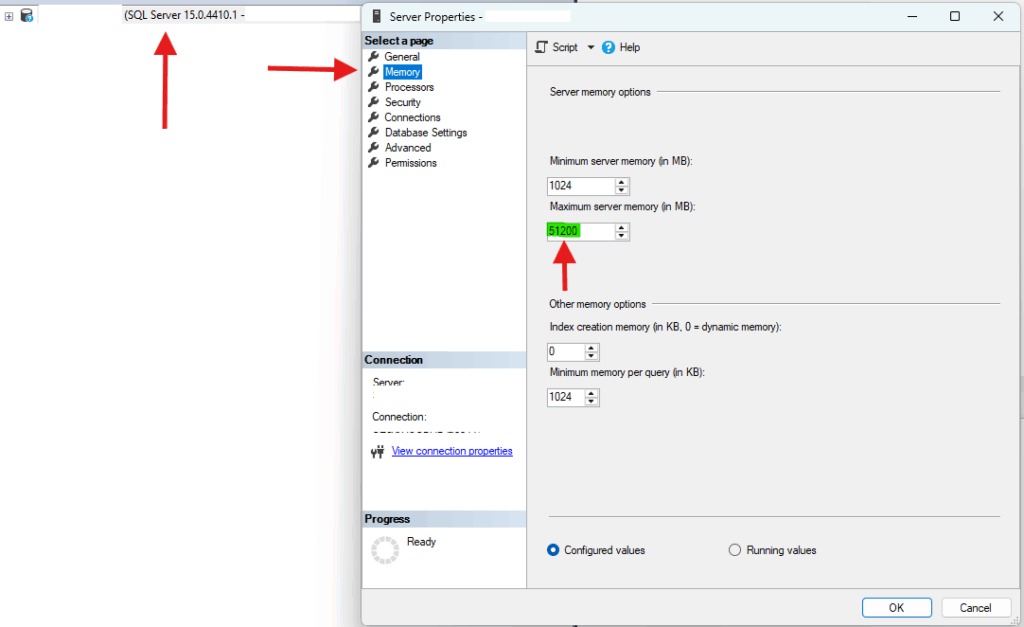
Results:
- 2,147,483,647: The default ceiling. Review whether a lower limit fits this host.
- Any other number: A custom limit. Check whether it still suits the workload; a changed value is not proof of good tuning.
The Cost
Check memory pressure before paying for a larger server. An unsuitable memory limit can leave Windows or other workloads short of RAM, even when the database server has substantial installed memory.
If memory pressure is causing paging or query waits, a better allocation may help. If another bottleneck is responsible, changing this limit alone will not resolve it.
How to Fix It
Size the limit for this Windows host:
- Start with the physical RAM available to the host.
- Budget for Windows, other applications and any other SQL Server instances.
- Allow for SQL Server allocations outside max server memory, including thread stacks.
- Use representative workload measurements to choose the limit, then monitor and adjust it. A single percentage or RAM-size table cannot account for every host.
Worked example only: suppose a 128 GB host needs an 18 GB allowance for Windows and all other memory consumers outside this instance's controlled memory pool. The remaining 110 GB is a candidate limit to evaluate, not a recommendation for every 128 GB server.
| Example memory budget | GB |
|---|---|
| Total host RAM | 128 |
| Allowance outside the controlled pool | 18 |
| Candidate max server memory | 110 |
Using the 1,024-based conversion used for these SQL Server settings: 128 - 18 = 110 GB; 110 x 1,024 = 112,640 MB. Check: 110 + 18 = 128 GB. Replace this example budget with one appropriate to your server.
-- Example only: choose the memory budget for your own server first.
-- Preserve the original advanced-options visibility.
DECLARE @show_advanced_options int = (
    SELECT CONVERT(int, value_in_use)
    FROM sys.configurations
    WHERE name = 'show advanced options'
);

IF @show_advanced_options = 0
BEGIN
    EXEC sp_configure 'show advanced options', 1;
    RECONFIGURE;
END;

EXEC sp_configure 'max server memory (MB)', 112640;
RECONFIGURE;

IF @show_advanced_options = 0
BEGIN
    EXEC sp_configure 'show advanced options', 0;
    RECONFIGURE;
END;
Changing max server memory does not require a SQL Server restart, but it is not risk-free. Setting it too low can hurt performance. Record the old value, monitor the workload after the change and be ready to restore it if needed.
Why This Gets Missed
Teams can overlook an instance-level setting when investigating slow queries or planning hardware upgrades.
A default value alone is not an alert that proves a performance problem. Check observed memory pressure and the demands of the host.
The limit also deserves another review when the host, installed RAM or co-hosted workloads change.
Real Impact
When an unsuitable memory limit is contributing to pressure, correcting it can:
- Give Windows and other applications more room to work.
- Reduce memory contention and associated performance problems.
- Help you assess whether a hardware upgrade is necessary.
The Bigger Picture
Memory is one configuration to investigate alongside the workload. Use evidence to decide which change matters, rather than treating a list of settings as automatic performance wins.
Other settings worth reviewing for your environment:
- Max Degree of Parallelism (MAXDOP)
- Cost Threshold for Parallelism
- Lock Pages in Memory
- Instant File Initialization
Check the requirements and trade-offs for each setting. Changing max server memory requires no restart; enabling Lock Pages in Memory does require restarting the SQL Server instance.
Take Action
Run the diagnostic query and compare the configured limit with the host's memory budget and observed usage.
If the default ceiling is still in place, review whether it leaves enough room for Windows and other memory consumers under load.
If a custom value is already configured, check that it still fits the server. Both an excessive limit and an unnecessarily low one can cause problems.
Make a measured change, verify the result under representative load and keep the previous value available for rollback.
Source: Microsoft server memory configuration guidance.
Source: Microsoft instructions for enabling Lock Pages in Memory.